The cargo can be moved by drag and drop.
- Drag and drop the cargo(in group) you choose
-
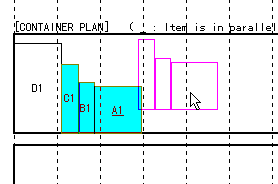
- Displacement between the layers(Change of vertical arrangement)
The location of the cargo is displayed by the color of the layer. The layer and the cargoes settled on it are shown in the same color. (but printed in black only)
*) Repeate color every five layers.1layer: Black (This layer is at the bottom of a container) 2layer: Blue (On the 1st layer) 3layer: Green (On the 2nd layer) 4layer: Purple : 5layer: Brown : 6layer: Black : 7layer: Blue : : : When you want to move the cargo to the different layer, place the cargo totally within the layer frame of destination. When the cargo is settled completely within the layer, it is shown in the same color as the layer. When the cargo is out of the layer (being shown with diagonal lines), it is not settled accurately yet.
You may confirm to which the layer the cargo belongs now by the color of the cargo and also at the 'layer' shown at the right edge of the status bar at the bottom of the screen.
When you want to move the cargo to the higher place than the existing layer, please select [Edit]-[ADD Layer] in the [Menu]
Notice) When the cargoes are out of the frame, apart from each other, they may not printed out accurately.
The chosen cargo is displayed in blue. Click the cargo first and then click the left button of the mouse.
When you keep on clicking the left button, you can move the cargo.
Leave your finger away from the left button to settle the cargo at the required place.
You can place the cargo wherever you like, inside or outside of the layer frame.
But when the cargo is out of the layer (out of the container),
it is marked with diagonal lines.
Then it is not shown in the picture that shows the hight of the cargo loaded on the top.
