The tree view on the left-hand side of a main screen expresses the relation of all containers and cargoes as the tree. You click it, the container or cargo in will be displayed on screen right-hand side. A cargo of the selected container will be displayed at starting 3D viewer.
If a tab button is clicked, you can change display of container exception or according to a cargo.
- According to container
-
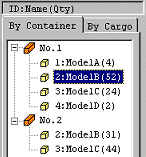
Cargos are displayed according to a container. If you click a container icon, the container plan will be displayed on right-hand side. The selected container is displayed on 3D viewer in three dimensions. Moreover, if a container icon is double-clicked or left + mark is clicked, all cargoes in the container will be developed. If a cargo icon is clicked, same kind cargos will be chosen with the container plan and 3D viewer.- According to cargo
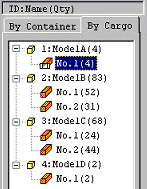
The container loading the selected cargo is displayed. If a cargo icon is double-clicked or left + mark is clicked, all the containers loading the selected cargo will be developed. If a container icon is clicked, container plan will be displayed on right-hand side, and the cargo on the selected container will be chosen and it will be displayed in three dimensions with 3D viewer.
